Discord
The Discord integration sends real-time subscription notifications to your Discord channels via webhooks. Get instant visibility into subscription activity with beautifully formatted, color-coded embed messages that make it easy to monitor revenue, track trials, and respond to billing issues as they happen.
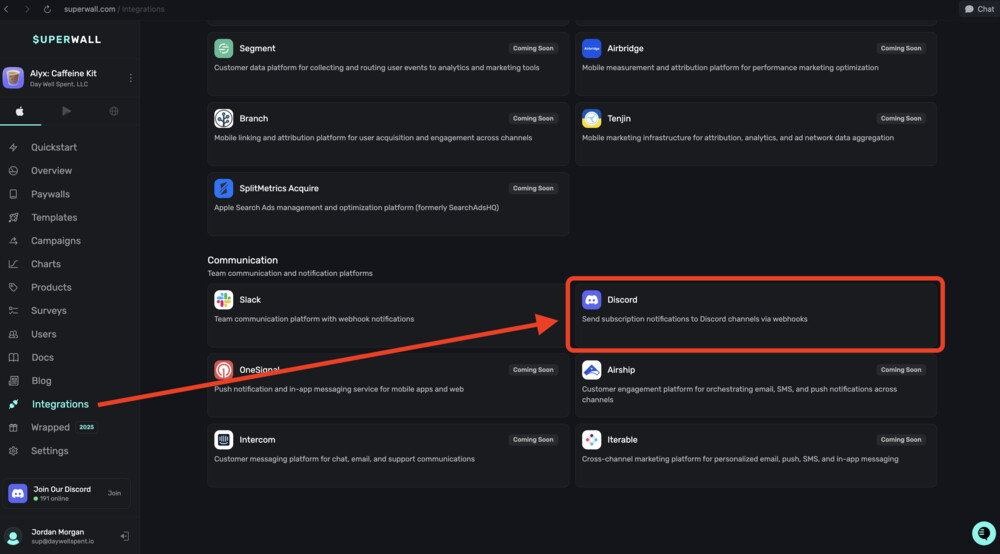
In the Communication section within Integrations, you can connect your Discord account to Superwall:
Features
- Rich Embed Messages: Beautiful, color-coded notifications with emoji indicators for quick visual parsing
- Event Type Filtering: Choose between revenue-only events or all subscription lifecycle events
- Real-Time Notifications: Instant alerts when subscription events occur
- Smart Formatting: Currency formatting, country names, and human-readable descriptions
- Flexible Revenue Reporting: Report either gross revenue or net proceeds after store fees
- Anonymous User Handling: Configurable behavior for users without an identified app user ID
- Custom Event Names: Override default event titles to match your team's terminology
- Sandbox Indicators: Clear visual badge when events come from test environments
Configuration
Required Settings
| Field | Description | Example |
|---|---|---|
integration_id | Must be set to "discord" | "discord" |
webhook_url | Discord webhook URL from your server | "https://discord.com/api/webhooks/123/abc..." |
sales_reporting | Whether to report gross Revenue or net Proceeds | "Revenue" or "Proceeds" |
Optional Settings
| Field | Description | Default |
|---|---|---|
event_type | Filter which events to send | "All Subscription Events" |
anonymous_user_behavior | How to handle events from users without an app user ID | "send" |
Example Configuration
{
  "integration_id": "discord",
  "webhook_url": "https://discord.com/api/webhooks/1234567890/abcdefghijklmnop",
  "sales_reporting": "Revenue",
  "event_type": "All Subscription Events",
  "anonymous_user_behavior": "send"
}
Creating a Discord Webhook
- Open your Discord server
- Go to Server Settings (click the server name → Settings)
- Navigate to Integrations → Webhooks
- Click New Webhook
- Configure the webhook:
- Name: Choose a name (e.g., "Superwall Events")
- Channel: Select the channel where notifications will appear
- Avatar: Optionally customize the webhook's avatar
- Click Copy Webhook URL
- Paste the URL into your integration configuration
Tip: Create a dedicated channel like #subscription-events or #revenue-alerts to keep notifications organized.
Event Filtering
The event_type setting controls which events are sent to Discord:
All Subscription Events (Default)
Sends every subscription lifecycle event:
- Trial starts and conversions
- New subscriptions
- Renewals
- Cancellations and expirations
- Billing issues
- Product changes
- Refunds
Best for: Teams that want complete visibility into all subscription activity.
Revenue Events Only
Only sends events with non-zero revenue:
- New paid subscriptions
- Renewals
- Trial conversions
- One-time purchases
- Refunds (negative revenue)
Skips: Trial starts, cancellations, expirations, billing issues (unless they have revenue attached).
Best for: Teams focused on revenue notifications without the noise of non-revenue events.
Message Format
Discord messages are sent as rich embeds with the following structure:
Embed Structure
┌─────────────────────────────────────────┐
│ [Superwall Logo] Superwall              │  ← Author
├─────────────────────────────────────────┤
│ 💰 New Subscriber                       │  ← Title (with emoji)
│                                         │
│ $9.99 subscription started from         │  ← Description
│ United States                           │
├─────────────────────────────────────────┤
│ 👤 User      🎯 Product    📱 Store     │  ← Fields (inline)
│ user_123    com.app.pro   App Store •   │
│                           United States │
│                                         │
│ 💰 Revenue                              │  ← Revenue field
│ $9.99                                   │
├─────────────────────────────────────────┤
│ Powered by Superwall    Jan 15, 2024    │  ← Footer + Timestamp
└─────────────────────────────────────────┘
Embed Fields
| Field | Description | When Shown |
|---|---|---|
| 👤 User | User ID or "Anonymous" | Always |
| 🎯 Product | Product identifier | Always |
| 📱 Store | Store name and country | Always |
| 💰 Revenue / 💵 Proceeds | Formatted amount | When price ≠ 0 |
| ⚙️ Sandbox | Test environment indicator | Sandbox events only |
| 🎁 Offer | Promotional offer code | When offer code present |
| 🔄 Product Change | Old → New product | Product change events |
Event Titles and Colors
Each event type has a distinct emoji, title, and color for quick visual identification.
Color Coding
| Color | Hex Code | Meaning |
|---|---|---|
| Green | #36A64F | Revenue events (purchases, renewals, conversions, uncancellations) |
| Blue | #3498DB | Trial-period events other than renewals — including trial cancellations, expirations and refunds |
| Red | #FA6A6A | Negative non-trial events (cancellations, refunds, expirations) |
| Orange | #FF9500 | Billing issues |
| Purple | #9B59B6 | Product changes |
| Gray | #666666 | Other events |
The trial check runs before the negative check, so every trial-period event that isn't a renewal is Blue — a cancelled or refunded trial is Blue, not Red.
Event Title Reference
Discord receives these titles, not the sw_* identifiers — the identifier is internal and never appears in a message.
These titles are not configurable. There is no per-customer event renaming for Discord; every server on this integration receives the same titles.
Trial Events
| Event | Title | Identifier | Color |
|---|---|---|---|
| Trial Start | 🤩 Trial Start | sw_trial_start | Blue |
| Trial Conversion | 💰 Trial Conversion | sw_trial_converted | Green |
| Renewal during trial (no conversion) | 💰 Renewal | sw_renewal | Green |
| Trial Cancelled | 😞 Cancelled Trial | sw_trial_cancelled | Blue |
| Trial Refunded | 🤬 Refunded Trial | sw_refund | Blue |
| Trial Expired | 😞 Expired Trial | sw_trial_expired | Blue |
| Trial Uncancelled | 🤩 Trial Uncancelled | sw_trial_uncancelled | Blue |
Intro Offer Events
| Event | Title | Identifier | Color |
|---|---|---|---|
| Intro Start (free) | 🤩 Intro Offer Start | sw_intro_offer_start | Green |
| Intro Start (paid) | 💰 Intro Offer Start | sw_intro_offer_start | Green |
| Intro Conversion | 💰 Intro Offer Conversion | sw_intro_offer_converted | Green |
| Intro Cancelled | 😞 Cancelled Intro Offer | sw_intro_offer_cancelled | Red |
| Intro Refunded | 🤬 Refunded Intro Offer | sw_refund | Red |
| Intro Expired | 😞 Expired Intro Offer | sw_intro_offer_expired | Red |
| Intro Uncancelled | 🤩 Intro Offer Uncancelled | sw_intro_offer_uncancelled | Green |
Subscription Events
| Event | Title | Identifier | Color |
|---|---|---|---|
| New Subscription | 💰 New Subscriber | sw_subscription_start | Green |
| Renewal | 💰 Renewal | sw_renewal | Green |
| Cancellation | 😞 Cancelled Subscription | sw_subscription_cancelled | Red |
| Refund | 🤬 Refunded Subscription | sw_refund | Red |
| Expiration | 😞 Expired Subscription | sw_subscription_expired | Red |
| Uncancellation | 🤩 Subscription Uncancelled | sw_subscription_uncancelled | Green |
Other Events
| Event | Title | Identifier | Color |
|---|---|---|---|
| One-Time Purchase | 💰 One-Time Purchase | sw_non_renewing_purchase | Green |
| Product Change | 😵💫 Product Change | sw_product_change | Purple |
| Billing Issue | 🫠 Billing Issue | sw_billing_issue | Orange |
| Subscription Paused | ⏸️ Subscription Paused | sw_subscription_paused | Gray |
Matching Order
Titles are chosen in this order — which is why a billing_issue during a trial gets the 🫠 Billing Issue title rather than a trial title:
product_change,billing_issue,subscription_paused— matched on the event name, for anyperiodType.periodTypeselects the Trial / Intro / Subscription title, with the refund variant chosen byprice < 0.non_renewing_purchaseoutside aNORMALperiod → 💰 One-Time Purchase.- Anything unmatched falls back to the raw Superwall event name.
Revenue Display
Revenue vs Proceeds
The sales_reporting setting controls which amount is displayed:
- Revenue: The full price charged to the customer (e.g., $9.99)
- Proceeds: The amount after store fees (e.g., $8.49 after Apple's 15-30% commission)
The field label changes based on your setting:
- Revenue mode: "💰 Revenue"
- Proceeds mode: "💵 Proceeds"
Currency Formatting
Amounts are automatically formatted with the correct currency symbol and locale:
$9.99for USD€9.99for EUR£9.99for GBP¥999for JPY
Zero-Value Events
Events without revenue (trial starts, cancellations, expirations) do not show a revenue field, keeping the message compact.
Refunds
Refunds display negative amounts:
- "💰 Revenue: -$9.99"
Anonymous User Handling
The anonymous_user_behavior setting controls how events from unidentified users are handled:
Send (Default)
- Events from anonymous users are sent to Discord
- User field displays "Anonymous"
- Useful for complete visibility into all subscription activity
Don't Send
- Events from anonymous users are skipped
- No notification is sent to Discord
- Useful if you only want to track identified users
Sandbox Events
Events from sandbox/test environments are clearly marked:
- A "⚙️ Sandbox" field is added with value "Test Environment"
- Helps distinguish test events from production activity
- Production events do not show any environment indicator
Testing the Integration
1. Validate Credentials
The integration validates your webhook URL by sending a test event. If the URL is invalid or the webhook has been deleted, validation will fail.
2. Send a Test Event
Trigger a subscription event from your app (or use sandbox mode) to verify messages appear correctly.
3. Verify in Discord
Check your configured channel for the notification:
- Confirm the embed appears with correct formatting
- Verify colors match the event type
- Check that fields display correct information
4. Test Scenarios
- New subscription shows green with 💰 emoji
- Trial start shows blue with 🤩 emoji
- Cancellation shows red with 😞 emoji
- Revenue field shows correct amount
- Sandbox events show "⚙️ Sandbox" field
- Revenue-only filter skips zero-price events
- Anonymous users show "Anonymous" or are skipped per setting
- Custom event names appear in title
Best Practices
-
Create a dedicated channel: Keep subscription notifications separate from general chat to avoid noise and make monitoring easier.
-
Use Revenue Events Only for busy apps: If you have high volume, filtering to revenue-only events reduces noise while keeping you informed of important transactions.
-
Set up channel notifications: Configure Discord channel notification settings (e.g., only notify for @mentions) to avoid constant pings.
-
Consider multiple webhooks: Create separate webhooks for different event types (e.g., one for revenue in
#sales, one for all events in#subscription-logs). -
Monitor billing issues: Pay special attention to orange "🫠 Billing Issue" notifications—these represent potential revenue at risk.
-
Use meaningful custom names: If you customize event names, make them clear and actionable for your team.
Common Use Cases
Sales Celebration Channel
Create a #sales channel with revenue-only events:
{
  "event_type": "Revenue Events Only",
  "sales_reporting": "Revenue"
}
Celebrate new subscribers and renewals with your team!
Churn Monitoring
Create a #churn-alerts channel and filter to cancellation events using a separate integration instance:
- Monitor cancellation patterns
- Quickly identify if something is causing unusual churn
- React to billing issues before they become cancellations
Customer Success Integration
Use the user ID field to quickly look up users in your CRM or support system:
- Click the dashboard URL in the embed to view user details
- Reach out proactively to users who cancelled
- Thank high-value subscribers personally
Team Revenue Dashboard
Display the Discord channel on a team dashboard or TV:
- Real-time visualization of subscription activity
- Color-coded events make it easy to gauge health at a glance
- Celebrate wins and identify issues quickly
Troubleshooting
Messages Not Appearing
Possible causes:
- Invalid webhook URL
- Webhook was deleted in Discord
- Channel permissions prevent webhook posting
- Event filtered out by
event_typesetting
Solutions:
- Verify the webhook still exists in Server Settings → Integrations
- Check that the webhook has permission to post in the target channel
- Confirm
event_typesetting includes the event you're expecting - Re-create the webhook if it was deleted
Webhook Rate Limited
Possible causes:
- Discord rate limits webhook requests (30 requests per minute per channel)
- High volume of subscription events
Solutions:
- Use "Revenue Events Only" to reduce volume
- Consider using a less busy channel
- Events will be queued and retried automatically
Unexpected Event Titles or Emojis
Possible causes:
- Expecting custom titles — Superwall always sends the fixed titles listed above
- The event resolved differently than expected (see Matching Order)
Solutions:
- Check the event title reference table above
- Confirm the
periodTypeandpriceon the event — a negative price selects the 🤬 refund variant - Remember that
billing_issue,product_changeandsubscription_pausedmatch beforeperiodTypeis consulted
Missing Revenue Field
Possible causes:
- Event has zero price (normal for trial starts, cancellations)
- This is expected behavior
Solutions:
- Revenue field only appears when price ≠ 0
- Trial starts, cancellations, and expirations typically have no revenue
Sandbox Badge Appearing
Possible causes:
- Event came from sandbox/test environment
- This is expected behavior
Solutions:
- The "⚙️ Sandbox" field only appears for sandbox events
- Verify you're testing in the correct environment
Rate Limits
Discord enforces rate limits on webhooks:
| Limit | Value |
|---|---|
| Requests per minute | 30 per channel |
| Embed limit | 10 embeds per message |
| Total character limit | 6,000 characters per message |
The integration sends one embed per event, which is well within these limits. For extremely high-volume applications, consider using the "Revenue Events Only" filter.
API Reference
Endpoint
Events are sent directly to your Discord webhook URL:
POST https://discord.com/api/webhooks/{webhook_id}/{webhook_token}Request Headers
Content-Type: application/jsonRequest Body
{
  "embeds": [
    {
      "author": {
        "name": "Superwall",
        "icon_url": "https://superwall.com/favicon.ico"
      },
      "title": "💰 New Subscriber",
      "description": "$9.99 subscription started from United States",
      "url": "https://superwall.com/applications/{app_id}",
      "color": 3582031,
      "thumbnail": {
        "url": "https://superwall.com/favicon.ico"
      },
      "fields": [
        { "name": "👤 User", "value": "user_123", "inline": true },
        { "name": "🎯 Product", "value": "com.app.premium", "inline": true },
        { "name": "📱 Store", "value": "App Store • United States", "inline": true },
        { "name": "💰 Revenue", "value": "$9.99", "inline": true }
      ],
      "timestamp": "2024-01-15T10:30:00.000Z",
      "footer": {
        "text": "Powered by Superwall",
        "icon_url": "https://superwall.com/favicon.ico"
      }
    }
  ]
}
Response
Success: 204 No Content (Discord returns no body on success)
Error:
400 Bad Request: Invalid embed structure401 Unauthorized: Invalid webhook token404 Not Found: Webhook was deleted429 Too Many Requests: Rate limited
How is this guide?
Slack
The Slack integration sends real-time notifications about subscription events to your Slack channels. Get instant updates about new subscribers, cancellations, renewals, and revenue changes with rich, color-coded messages and contextual emojis.
Figma Plugin
The Superwall Figma Plugin allows designers to convert Figma designs into fully functional paywalls with one click.